Valid IP Configuration for WiFi
One of the most frequent network errors on Windows is the “WiFi doesn’t have a valid IP configuration.” If you’re prompted with this error in the Network Diagnostic Tool, you should take action to solve it, because it doesn’t come with an automated solution. Let’s discuss the common causes of this error and learn how to fix the issue.
Why Does WiFi Seem to Not Have a Valid Configuration?
The “WiFi doesn’t have a valid IP configuration” error is reported when the router’s IP address configuration doesn’t match the IP registered by your Network Adapter. It may happen after updating your Windows or when network changes have not been forwarded to the Network Adapter. Driver or DNS issues can also cause this error. Alternatively, the main cause of the error may simply be a malfunctioning router or modem. You can always take a shot at fixing the error yourself.
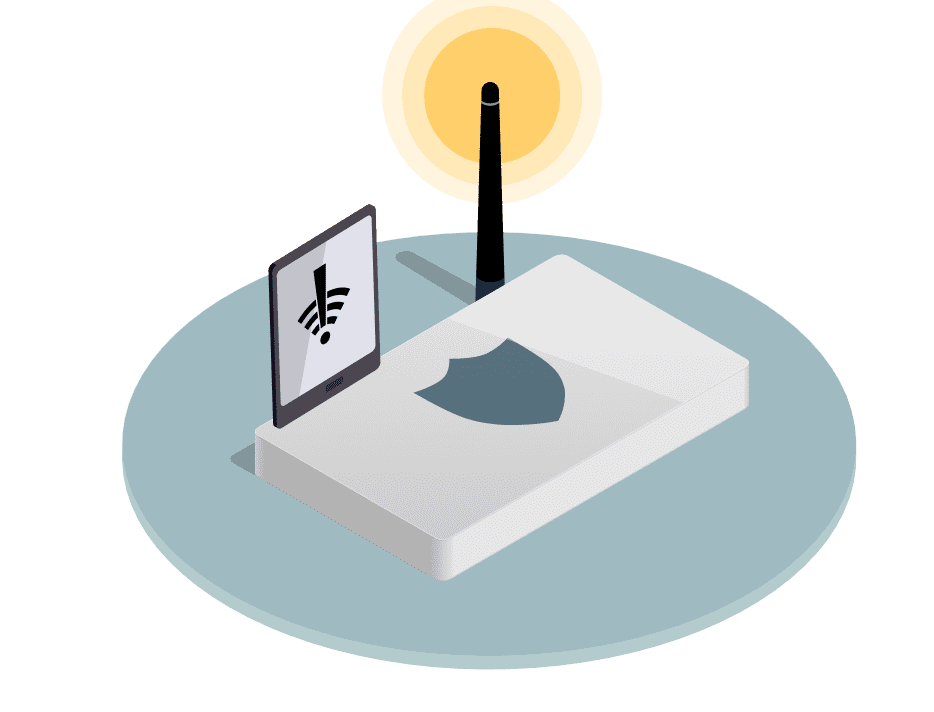
How to Solve the Issue and Set Up a Router Using a VPN
There are a number of workarounds to fix the matching problem of the IP addresses on your network, including:
- Check whether your network service Is actually running
- Update the drivers for your device
- Reset the valid IP configuration on Network Adapter
- Readjust TCP/IP configuration
But the best way to get rid of the “valid configuration” issue is by using a reliable VPN. By setting up a VPN on your router that covers your entire WiFi network, you negate the matching problem with IP addresses. Moreover, a router-level VPN frees you from having to individually install a VPN on every mobile or computer that you regularly use.
VPN makes a secure, encrypted connection tunnel from the internet to your device. It collects your device’s send/receive traffic and sends it via a virtual server through a tunnel. This protects your data from getting redirected or intercepted by hackers or even authorities.
Most WiFi routers lack VPN capabilities such as traffic encryption and IP address masking, despite allowing VPN traffic to pass through. The setup process varies depending on your router. For detailed, model-specific instructions, visit this page.

Secure Your WiFi Connection with VPN Unlimited!
Here’s a general guide to setting up VPN Unlimited on your WiFi modem:
- Go to User Office, and click Manage on the VPN Unlimited panel
- Generate configurations for your router
- Open the settings page of your WiFi router
- Enter VPN Unlimited valid configurations, and restart the router
VPN Unlimited is an affordable solution that comes with huge benefits.